> ## Documentation Index
> Fetch the complete documentation index at: https://jugarmu.com/ayuda/llms.txt
> Use this file to discover all available pages before exploring further.
# Inicio de tu servidor
> Salud, jugadores, cuentas y accesos del panel actual.
Entrá a [jugarmu.com/panel](https://jugarmu.com/panel) y elegí tu servidor. **Inicio** reúne el estado del juego y las acciones frecuentes.
* [Leer el resumen](/ayuda/ayuda/general/resumen/que-es).
* [Comprobar la salud](/ayuda/ayuda/general/resumen/revisar-salud).
* [Consultar actividad y próximos eventos](/ayuda/ayuda/general/resumen/actividad-y-eventos).
* [Detener o iniciar servicios](/ayuda/ayuda/general/resumen/detener-servicio).
En el celular, Inicio está en el menú inferior. Las demás secciones están en **Menú**. En escritorio usá el menú izquierdo.
 ## Cuando acabás de recibir tu servidor
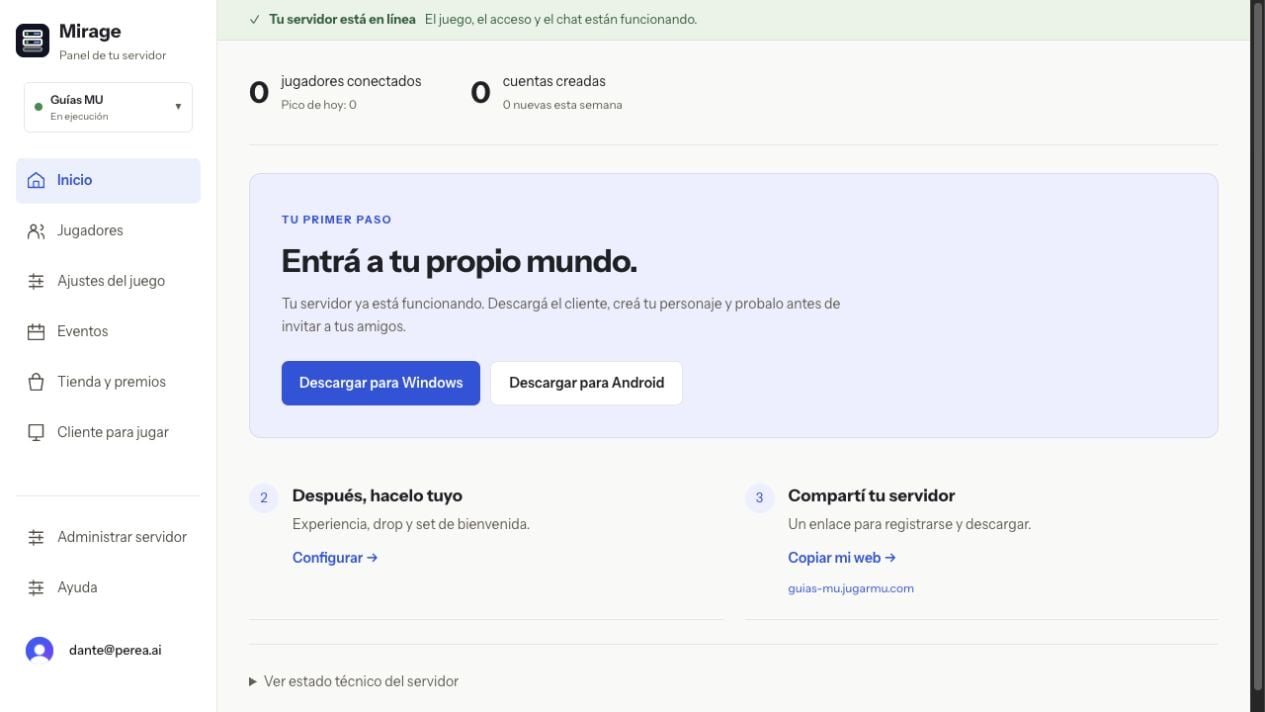
Si todavía no se conectó ningún jugador, Inicio muestra **Entrá a tu propio mundo**. Descargá el cliente para Windows o Android, creá tu personaje e ingresá. Después podés abrir **Configurar** para ajustar experiencia, drop y set de bienvenida, y copiar el enlace de tu web para invitar amigos.
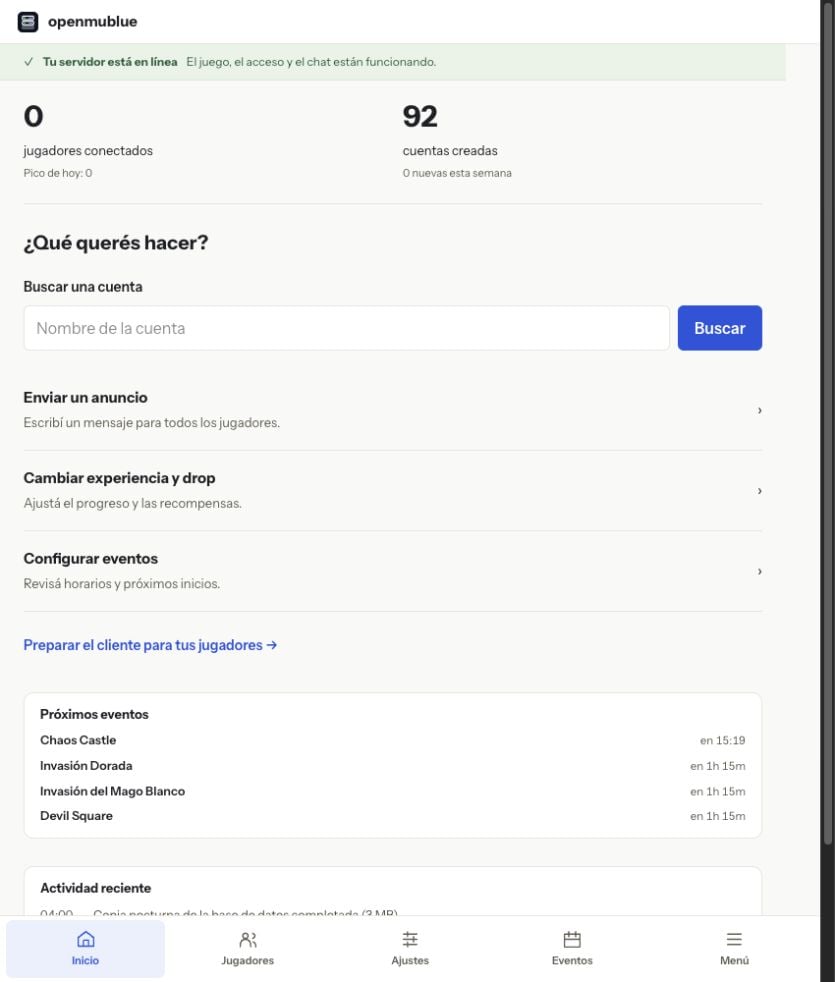
Cuando el servidor registra su primer jugador conectado, vuelve el resumen habitual con **Qué querés hacer** y la búsqueda de cuentas. Que luego vuelva a cero jugadores no debería mostrar otra vez el primer paso.
## Cuando acabás de recibir tu servidor
Si todavía no se conectó ningún jugador, Inicio muestra **Entrá a tu propio mundo**. Descargá el cliente para Windows o Android, creá tu personaje e ingresá. Después podés abrir **Configurar** para ajustar experiencia, drop y set de bienvenida, y copiar el enlace de tu web para invitar amigos.
Cuando el servidor registra su primer jugador conectado, vuelve el resumen habitual con **Qué querés hacer** y la búsqueda de cuentas. Que luego vuelva a cero jugadores no debería mostrar otra vez el primer paso.